Teachers are in a tricky spot.
You want students to practice more, review more often, and stay engaged—but you also know they already spend a lot of time on screens. Between school devices, homework platforms, videos, games, messaging, and home media, “just assign another digital activity” does not always feel like the right answer.
The good news: keeping learning going does not have to mean adding more screen time. The strongest classroom routines often use technology briefly, then move students into discussion, writing, movement, paper practice, partner work, or reflection.
This article shares practical ways to extend learning without keeping students glued to a device. Tools like BrainFusion can launch a five-question review game in under five minutes—and the resulting data tells you exactly which concepts to focus on next, no extra screen time required.
Screen Time Is Not the Enemy—Unplanned Screen Time Is
The goal is not to make every lesson screen-free. Digital tools can be useful when they save teachers time, provide immediate feedback, or surface learning gaps. The problem happens when screens become the default for every practice activity, even when a lower-tech option would work just as well.
The American Academy of Pediatrics encourages families and educators to think beyond a simple number of minutes and consider the quality, context, and balance of media use. Its 5 Cs of Media Use framework also encourages adults to look at the child, content, calm, crowding out, and communication—not just the clock.
In the classroom, that means asking:
- Is this screen activity doing something paper cannot?
- Is it helping students actively retrieve, explain, or apply knowledge?
- Is it replacing sleep, movement, conversation, creativity, or hands-on practice?
- Can the screen portion be shorter while the learning continues offline?
A helpful mindset is: use screens to launch, diagnose, or organize learning—not to carry every minute of learning.
Pro Tip: Use the 5-Minute Rule
If a digital activity gives students feedback, data, or momentum in five minutes, use it. Then move the rest of the practice into notebooks, small groups, whiteboards, stations, or discussion.
Start Digitally, Then Move Offline
One of the easiest ways to reduce screen time without reducing learning is to split activities into two parts:
- Digital launch: quick retrieval, game, poll, or diagnostic check
- Offline extension: discussion, correction, movement, writing, sorting, drawing, or partner explanation
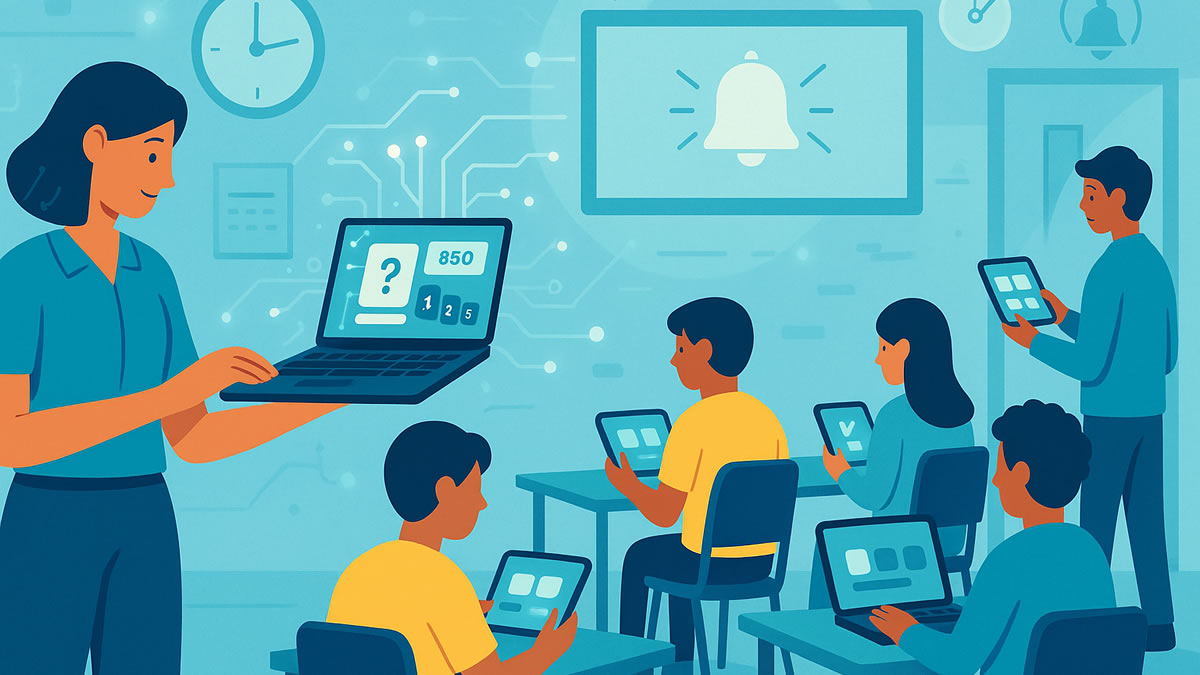
For example, a teacher might use BrainFusion for a short five-question warmup game on yesterday’s lesson. Students join with a simple code, answer quickly, and get immediate feedback. The teacher then uses the missed-question report to choose the next offline activity.
That short digital burst can lead to:
- A paper “fix the misconception” task
- Partner explanation cards
- A whiteboard reteach race
- A movement-based station rotation
- A notebook reflection on the hardest question
- A small-group mini-lesson for students who missed the same concept
The screen helped identify what students needed. The deeper learning happened through conversation, correction, and practice.
The Education Endowment Foundation’s evidence summary on feedback notes that effective feedback helps learners understand where they are relative to learning goals and what they can do to improve. That is why the follow-up after a game matters so much: the data is only useful when students act on it.
Example: A 20-Minute Low-Screen Review
Digital portion: 5 minutes
- Students play a quick BrainFusion review game.
- The teacher checks which questions were most commonly missed.
- Students close devices.
Offline portion: 15 minutes
- Students rewrite one missed question in their own words.
- Partners explain why the correct answer works.
- Each pair creates one new question on paper.
- The class ends with a verbal “teach-back” from 3–4 volunteers.
That is still game-based learning. It just does not require students to stay on a screen the whole time.
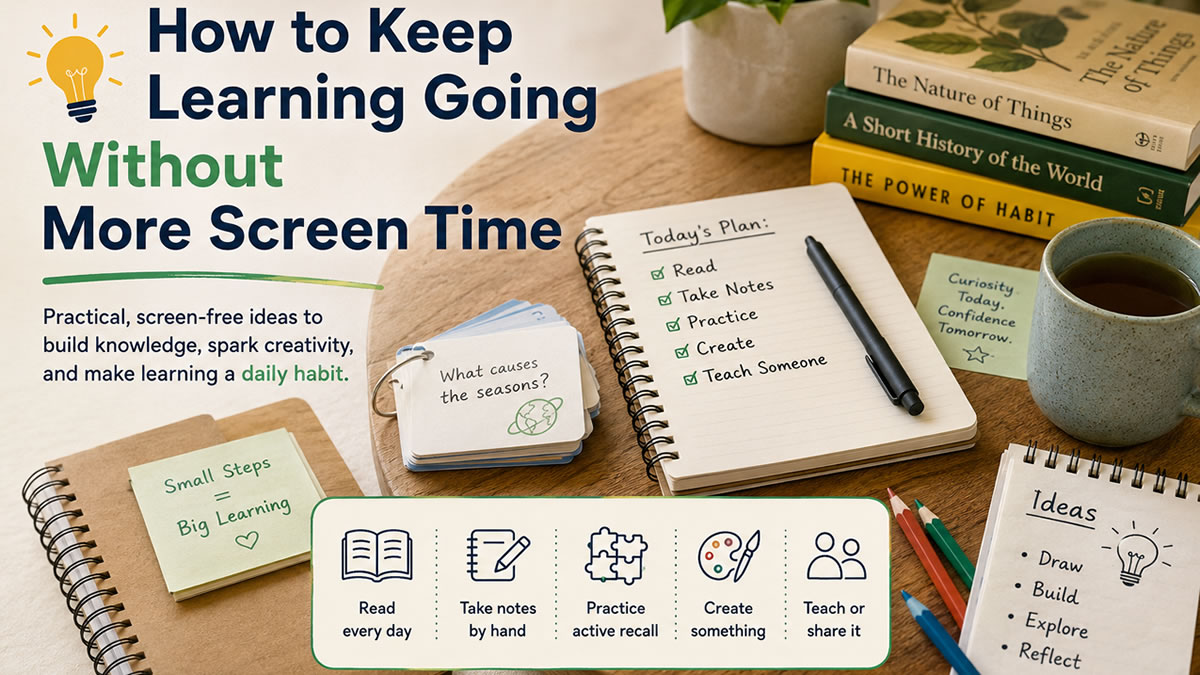
Use Retrieval Practice Without Devices
Retrieval practice is one of the most useful learning routines teachers can use because it asks students to pull information from memory instead of simply rereading notes. The Institute of Education Sciences practice guide on organizing instruction and study recommends spacing learning over time, using quizzes to re-expose students to important content, and asking deep explanatory questions.
You do not need devices to make retrieval practice work. The Learning Scientists’ teacher summary of effective learning strategies explains that retrieval practice can happen when students write or draw what they remember from memory—not only when they take a formal quiz. Vanderbilt’s guide on test-enhanced learning and retrieval practice also emphasizes that low-stakes retrieval, not high-pressure testing, is what supports learning.
1. Brain Dumps
Give students two minutes to write everything they remember about a topic without notes.
Use it for:
- Vocabulary
- Historical events
- Science processes
- Math formulas
- Grammar rules
- Literature themes
After the brain dump, students compare with a partner, add missing ideas in a different color, and circle the one concept they still feel unsure about.
2. Paper Mini-Quizzes
A three-question paper quiz can be more powerful than a long worksheet.
Try this structure:
- One recall question: “What is photosynthesis?”
- One application question: “Why would a plant grow poorly without light?”
- One explanation question: “How are sunlight, carbon dioxide, and glucose connected?”
The key is not the paper itself. The key is that students are actively recalling and explaining.
If you want a faster starting point, BrainFusion lets you print any game's questions as a paper quiz—a quick way to generate three to ten targeted questions without building them from scratch.
3. Whiteboard Checks
Students answer on individual whiteboards, hold them up, and erase. This keeps practice fast, visible, and low pressure.
Best for:
- Math steps
- Vocabulary definitions
- Grammar corrections
- Short-answer science review
- Multiple-choice elimination
Whiteboards also let teachers scan the room quickly without collecting anything.
4. Retrieval Walks
Post questions around the room. Students rotate with a partner and answer on paper or sticky notes.
This adds movement, which can help attention and engagement. The CDC notes that classroom physical activity can support concentration, on-task behavior, motivation, engagement, and academic performance.
Turn Digital Game Data Into Hands-On Practice
A common mistake is treating a classroom game as the end of the lesson. Students play, see the leaderboard, cheer, and move on.
But the most valuable part often comes after the game.
BrainFusion’s question-level insights can help teachers identify which concepts need another pass. Instead of assigning another digital activity, use that data to create a quick offline follow-up.
If Students Missed a Vocabulary Question
Try a card sort.
- Put terms on one set of cards.
- Put definitions, examples, or images on another.
- Students match, defend, and correct.
If Students Missed a Multi-Step Math Problem
Try an error analysis station.
- Show a worked solution with one mistake.
- Students find the error, explain it, and solve correctly.
- Partners compare explanations.
If Students Missed a Reading Question
Try a text evidence challenge.
- Students return to the passage.
- They highlight the sentence that supports the answer.
- They write one sentence explaining their evidence.
If Students Missed a Science Concept
Try a draw-and-label task.
- Students sketch the process.
- They label each part.
- They explain the sequence aloud to a partner.
This is where technology becomes a teacher support tool, not a student screen-time burden. The data helps you choose the right offline practice.
BrainFusion Workflow
Create one quick review game, launch it for five minutes, then use the missed-question data to plan a no-screen follow-up activity.
Create Game Free →Build a Low-Screen Practice Menu
When teachers are busy, it helps to have repeatable routines ready. A low-screen practice menu gives you several options you can use after a digital warmup, during review days, or when students need a break from devices.
Quick Low-Screen Activities
1. Pair Teach-Back
Students explain one concept to a partner in under one minute. The partner asks one follow-up question.
2. Sticky Note Sort
Students sort sticky notes into categories: “I know it,” “I almost know it,” and “I need help.”
3. Four Corners Review
Label the corners of the room A, B, C, and D. Read a multiple-choice question aloud. Students move to the answer they choose, then explain their reasoning.
4. One-Minute Sketch
Students draw a concept, process, timeline, or relationship. This works especially well for science, social studies, and vocabulary.
5. Human Timeline
Students receive event cards and physically arrange themselves in order. Then they explain cause and effect.
6. Question Swap
Each student writes one review question on an index card. They swap with a partner, answer, and then improve the wording.
7. Mistake Museum
Post incorrect answers around the room. Students walk around, identify the mistake, and write a correction.
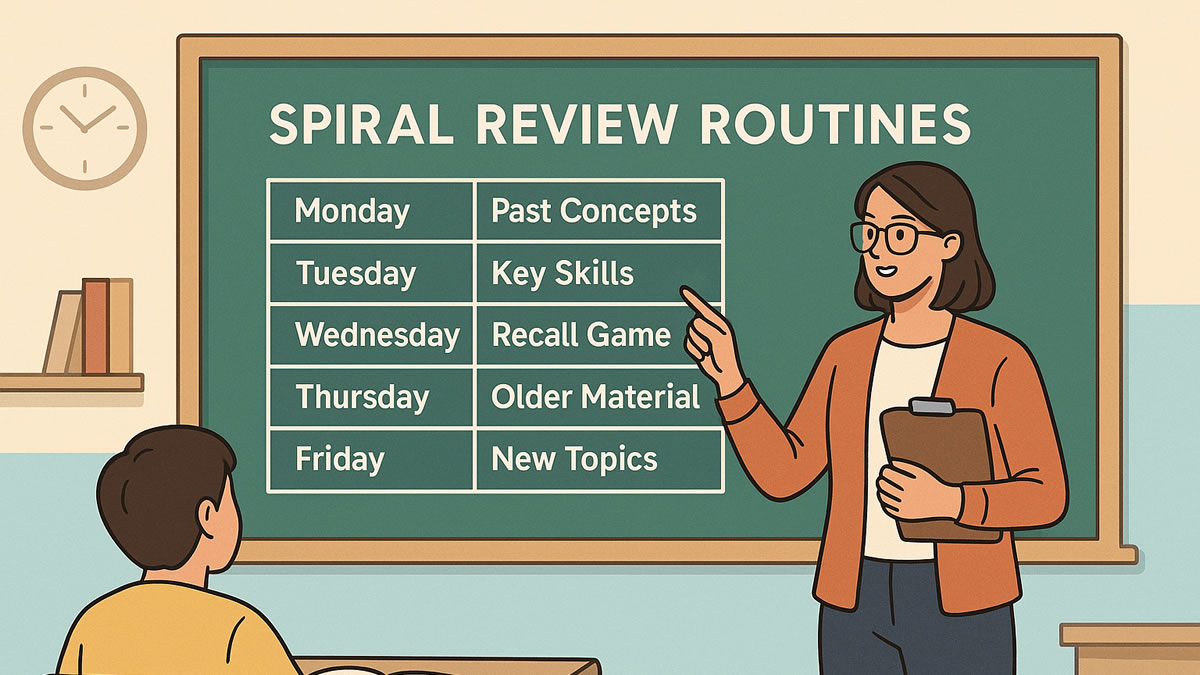
8. Stand-Up Spiral Review
Read a question from today, one from last week, and one from last month. Students answer on paper, then stand when ready to explain.
These routines keep students thinking, moving, speaking, and writing. They also support spaced practice because you can bring back older material without needing a new digital assignment.
Best Practices for Balancing Learning and Screens
Reducing screen time does not mean abandoning useful tools. It means being more intentional about when and why you use them.
The AAP’s updated digital media guidance encourages adults to look beyond total screen minutes and consider how digital design, relationships, sleep, movement, family time, and offline activities shape a child’s overall well-being. In classrooms, the same principle applies: technology works best when it has a clear instructional job.
Best Practices:
- Use screens for fast feedback. Let digital tools handle quick checks, scoring, and reports.
- Move deeper thinking offline. Use writing, discussion, drawing, and explaining for processing.
- Keep digital sessions short. A five-to-ten-minute game can be enough to reveal learning gaps.
- Build in movement. Rotate stations, use four corners, or add retrieval walks.
- Make students explain answers. Learning improves when students justify their thinking.
- Return to key concepts later. Spacing matters. Bring back important ideas next week and next month.
Common Mistakes to Avoid:
- ❌ Replacing every worksheet with a screen. Digital does not automatically mean better.
- ❌ Ending with the leaderboard. Follow up on missed questions so the game supports mastery.
- ❌ Using screens when conversation would work better. Some of the best learning happens when students explain ideas out loud.
- ❌ Making offline practice too long. Short, focused activities are easier to repeat.
- ❌ Treating movement as a break from learning. Movement can be part of learning when students answer, sort, explain, and apply.
A Sample Low-Screen Lesson Flow
Here is a simple structure you can use in almost any subject.
Objective: Students will review key concepts from the previous lesson and explain one misconception in their own words.
Warm-Up Game (5 minutes):
- Launch a short BrainFusion review game with 5–8 questions.
- Students join with a code and answer individually or in teams.
- Teacher checks which question had the most missed answers.
Screen-Free Reteach (7 minutes):
- Students close devices.
- Teacher writes the most-missed question on the board.
- Students answer: “Why might someone choose the wrong answer?”
- Class discusses the misconception.
Partner Practice (8 minutes):
- Each pair receives 3 paper question cards.
- Students answer, explain, and check with a partner.
- Partners mark the question they want reviewed.
Exit Reflection (3 minutes):
- Students complete this sentence on paper: “One thing I understand better now is ___ because ___.”
This routine uses technology for what it does well: quick engagement, immediate feedback, and useful data. Then it shifts to the human parts of learning: explanation, correction, conversation, and reflection.
Final Thoughts
Keeping learning going without more screen time is not about rejecting technology. It is about designing better rhythms.
Use digital tools when they help students practice quickly, give teachers useful insight, or make review easier to launch. Then move students into low-screen routines that ask them to speak, write, move, explain, correct, and create.
A balanced classroom does not have to choose between engagement and screen awareness. With short digital bursts and thoughtful offline follow-up, students can keep practicing without spending the whole lesson on a device.
Turn a Quick Game Into Deeper Practice
Create a short BrainFusion review game, spot learning gaps fast, and extend the lesson with low-screen follow-up activities.